Meet Autopilot: Your Fanvue Persona and PPV Campaigns, Ready to Review
Generate a persona and three PPV campaign drafts from your Fanvue profile and synced Vault. Review, save and start when you are ready.
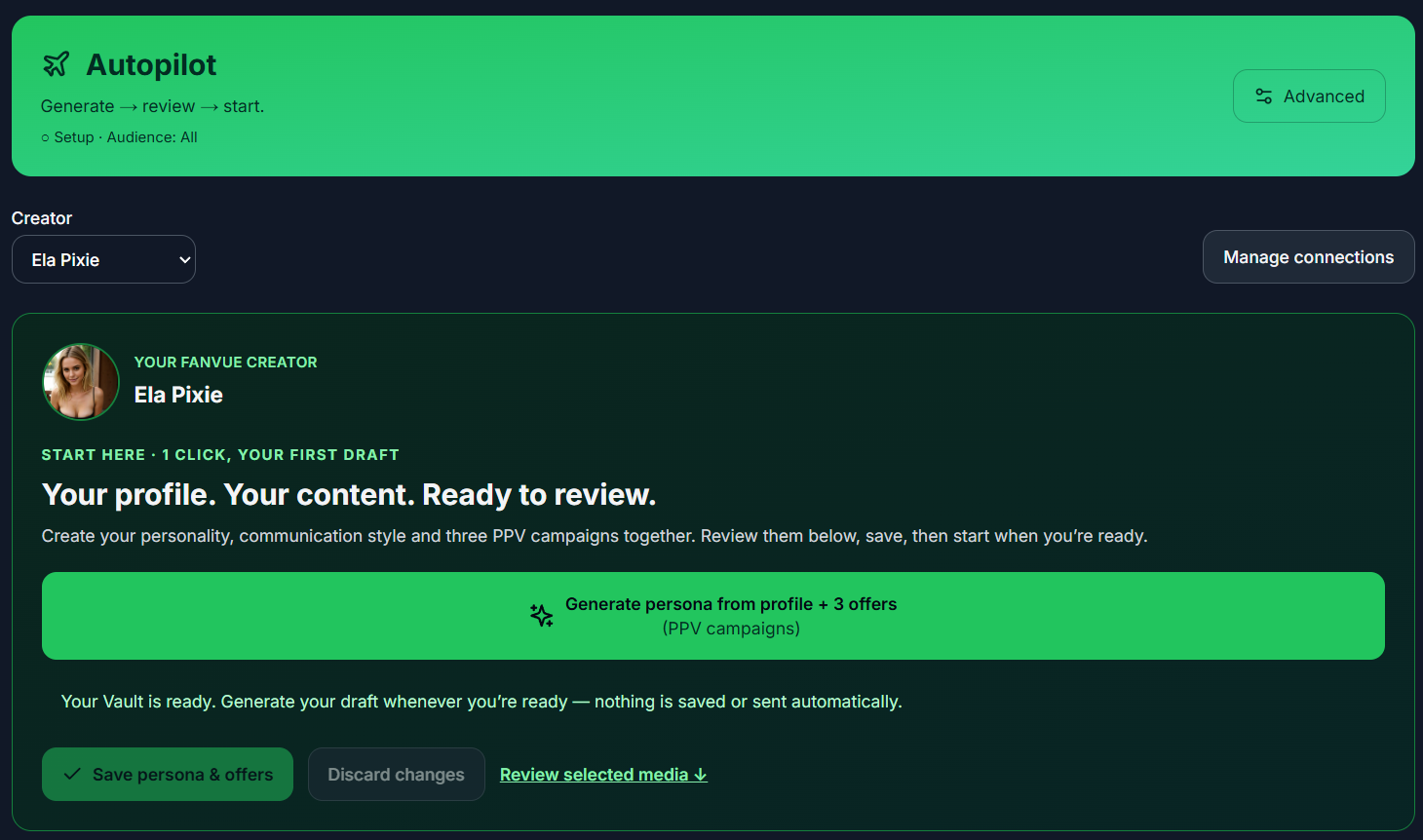
The screenshot shows the actual Autopilot setup interface. Generated drafts still need your review and explicit activation.
Autopilot is now available in Fanvue Automation. It brings the first setup steps into one place: use your creator profile to draft a persona and communication style, then prepare three PPV campaign drafts from your synced Vault.
The workflow is simple: generate → review → save → start. Generating a draft does not send an offer to a fan, and opening Autopilot does not switch it on. You stay in control of the content, prices, audience and activation.
Open Autopilot or follow the steps below before your first launch.
1. Connect your creator and let the Vault finish syncing
Select the correct creator account. Autopilot loads the profile and imports available Vault media before it can prepare useful suggestions. If Generate is unavailable, the explanation below it tells you whether data is loading, the Vault is empty, edits need saving, or live automation needs to be paused.
If the account needs Reconnect, finish authorization in Accounts. A profile picture or an old thumbnail is not proof that delivery is ready.
2. Generate a persona and three PPV campaign drafts
Choose Generate persona from profile + 3 offers (PPV campaigns). Autopilot drafts a personality and communication style from the connected profile. It also uses descriptions of up to 100 of the most recently uploaded, ready Vault photos and videos to propose themed offers.
Each paid bundle contains 1–5 photos and videos combined, with three as the preferred size. AI can suggest media, descriptions and prices, but you can change them before saving. These are proposed campaigns using your existing content, not newly generated photos or videos.
Useful Vault descriptions make suggestions easier to review. If the text does not accurately describe an asset, correct the selection or description rather than assuming the AI has visually inspected every image.
3. Review the persona, paid media and free previews
- Persona: check facts, tone, communication style and boundaries. Remove assumptions that do not fit the creator.
- Paid content: open the thumbnails and check every selected photo or video, the bundle size and the price.
- Offer description: use this as internal context for choosing an appropriate offer. It is not automatically pasted as the paid bundle's customer-facing caption. Generate description uses the descriptions of the selected media.
- Free preview: choose a separate image with Choose media, open it and confirm it is appropriate to show without payment. A label such as “blurred” or “censored” is only a clue, not a guarantee about the image.
A free preview is optional. If a suggestion conflicts with paid media or is unsuitable, leave the preview empty or choose another image. Autopilot does not automatically censor a photo for you.
Use Save persona & offers above or below the offers. Additional saved campaigns depend on your account's limit; at most three are selected for Autopilot at a time. To select a paused fourth offer, deselect one of the current three and save.
4. Review the sending controls, then start
Before choosing Start Autopilot, check the audience, delivery readiness and the available limits. Review Online Nudges, unread-nudge handling, incoming-photo understanding and memory suggestions/approval settings as well. These affect how your setup behaves, not just how it looks.
Only use Start Autopilot when the saved setup is ready. After the server confirms the start, the page shows Autopilot is running at the top. A blocked start does not count as active delivery.
Already using Advanced? It remains available. Opening Autopilot does not silently replace your existing persona or campaigns. If Advanced automation is running, pause it explicitly before changing over; do not overwrite a working setup just to try the new screen.
5. Follow results, then adjust deliberately
Use Open dashboard from the running status to see the selected creator's campaign results, including offers sent, unlocks and attributed revenue. A configured campaign is not an offer sent, an offer sent is not an unlock, and attributed revenue is not a guarantee of future earnings.
Use Pause & edit when you need to change the setup. Review and save the changes before restarting. There is no need to regenerate the whole persona whenever you want to adjust a single offer.
Before your first launch
- The correct creator is connected and the Vault has finished loading.
- The persona is accurate, and every paid asset and optional free preview has been checked.
- Prices, audience, selected campaigns and automation settings match your intention.
- You saved the draft and deliberately chose Start Autopilot.
- You know where to check results and how to pause the setup.
Try Autopilot · Check current pricing and credits · Read the documentation
For more detail, see our persona guide, Scripts and PPV comparison and Online Nudges guide. Need help with a setup? Join the Fanvue Automation Discord; keep customer details out of public screenshots.